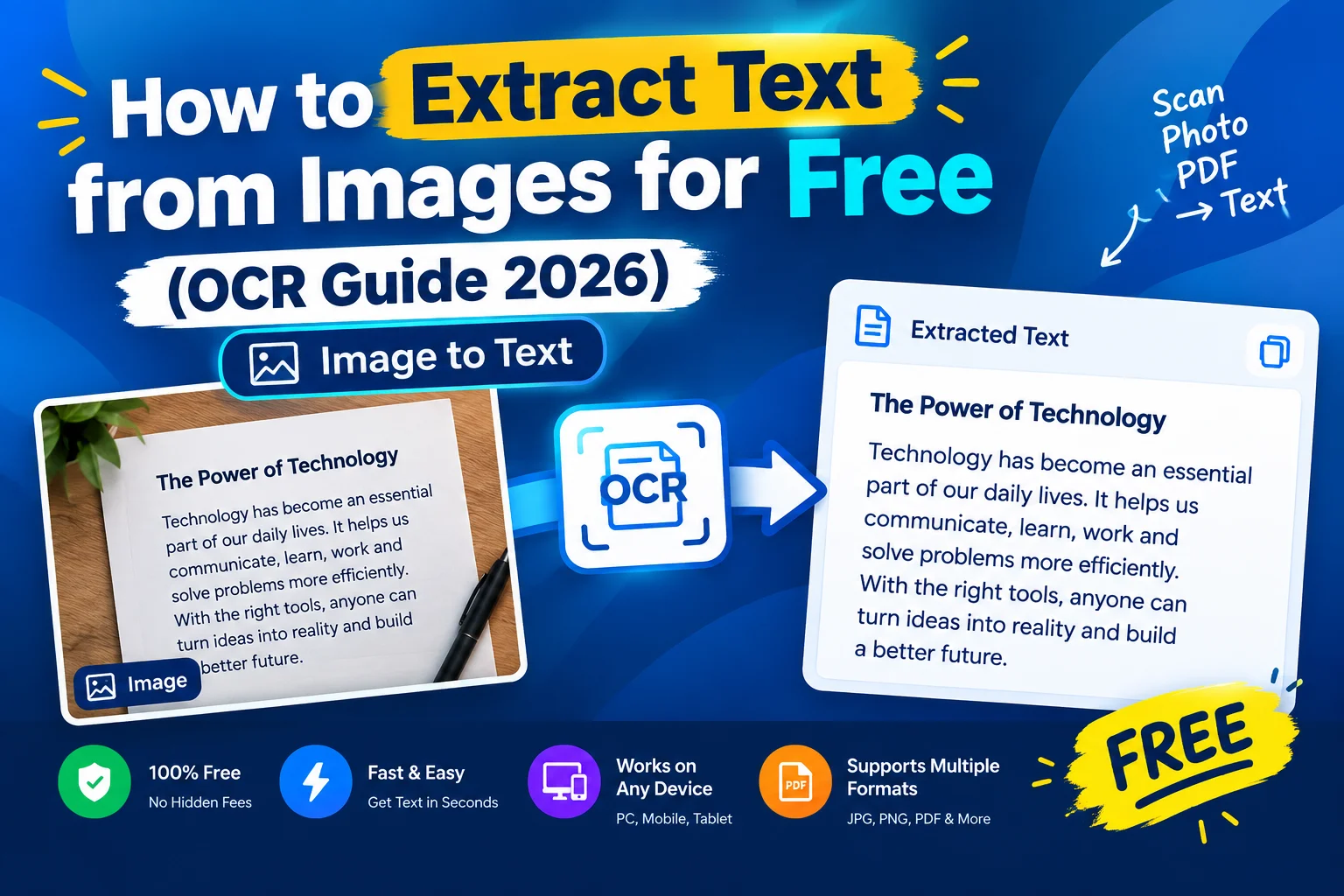

Introduction: Why Extracting Text from Images Matters
Millions of documents, screenshots, and photos contain useful text that is locked inside images. Students need notes from scanned pages. Workers need data from receipts or forms. Small businesses need content from flyers or signs.
Typing this text by hand wastes time and causes errors. Optical Character Recognition, or OCR, solves this by turning image text into editable words. Free tools now make this possible for anyone with a browser.
This guide shows you how to extract text from images for free using OCR in 2026. You will see step by step instructions, accuracy tips, and trusted tools that work.
What Is OCR and How Does It Work?
OCR stands for Optical Character Recognition. It is a technology that reads text inside images and converts it into digital text. The software analyzes shapes, lines, and patterns to match them with letters and numbers.
For example, a photo of a printed page can become a Word document. A screenshot of a sign can become copy you can edit. The result is not always perfect, but modern OCR is very accurate for clear images.
Free OCR tools run in your browser and require no installs. They are fast, private, and good enough for most daily tasks.
Best Free OCR Tools in 2026
Several free tools work well for students, workers, and small teams. They support common image formats and deliver clean text.
ToolsFlash Image to Text is a simple, browser based OCR tool. It processes images locally, so your data stays private. No signup is needed for basic use.
Google Drive (built in OCR) can extract text from uploaded images and PDFs. Right click the file, open with Google Docs, and the text appears. This works well for clear scans and screenshots.
OnlineOCR.net (free tier) supports many languages and formats. It allows a limited number of files per hour on the free plan. Output can be plain text, Word, or Excel.
New OCR (free) is another solid option with no file limits. It supports multiple languages and keeps formatting decent.
For most users, ToolsFlash or Google Drive are enough to handle daily needs. Try one, check the result, and stick with what works.
Step by Step: Extract Text from Images Using Free OCR
Follow these steps to convert image text into editable words with a free tool.
Step 1: Choose a trusted OCR tool
Pick a tool that runs in your browser and does not require signup. Look for clear notes about privacy and file handling. Tools that process files locally are safest.
Step 2: Prepare your image
Use a clear, well lit photo or scan. Avoid blurry, dark, or tilted images. Straighten and crop if needed for better results.
Step 3: Upload your image file
Click the upload button and select your image. Supported formats usually include JPG, PNG, and sometimes PDF. Wait for the file to load.
Step 4: Start the OCR process
Press the convert or extract button. The tool will analyze the image and pull out the text. This usually takes a few seconds for normal files.
Step 5: Download or copy the text
Once done, copy the text to your clipboard or download it as a file. Save it with a clear name, like Extracted Text.txt. This avoids confusion with the original image.
Step 6: Review and edit the output
Read the text and fix any errors. OCR is accurate but not perfect, especially with poor quality images. Small edits are normal and quick to apply.
This process takes less than a minute for most images.
What Types of Images Work Best with OCR?
Not all images give the same results. Some are easy for OCR to read. Others cause errors or fail completely.
Printed text on clean backgrounds works best. Books, documents, and clear screenshots give high accuracy. Standard fonts like Arial or Times New Roman are easiest to read.
Handwritten text is harder and less accurate. Neat, block letters work better than cursive or messy writing. Do not expect perfect results from notes or signatures.
Low quality or damaged images cause problems. Blurry, dark, or crumpled photos lead to missing or wrong text. Improve lighting and focus before scanning.
Complex layouts with columns, tables, or graphics may lose formatting. The text is usually there, but order and structure can shift.
For best results, use clear, high contrast images with simple layouts.
Tips to Improve OCR Accuracy
A few simple habits boost accuracy without extra cost.
Use high resolution images. Higher DPI or pixel count gives more detail for the OCR to read. Avoid tiny or heavily compressed files.
Ensure good lighting and contrast. Text should be dark on a light background. Shadows, glare, or stains reduce accuracy.
Straighten and crop the image. Tilted pages or extra borders confuse the software. Crop to the text area for cleaner results.
Choose the right language. Most tools let you select the language of the text. Picking the correct one improves recognition, especially for non English content.
These small steps turn average results into reliable ones.
Common Mistakes to Avoid
New users often make the same errors. Avoid these to save time and frustration.
Using blurry or dark images. Poor quality leads to wrong or missing text. Fix the image before uploading.
Expecting perfect results from handwritten notes. OCR is built for printed text. Handwriting is still a weak spot for most tools.
Ignoring the output before using it. Always review and edit the extracted text. Small errors are normal and easy to fix.
Uploading sensitive documents to unknown sites. Some tools store or share your files. Stick to trusted, browser based options with clear privacy policies.
Simple caution prevents most issues.
When to Use Paid OCR Software Instead
Free tools handle most needs, but paid software makes sense in some cases.
Consider paid options when:
You process hundreds of images each month.
You need high accuracy for legal, medical, or official documents.
You require batch processing with consistent formatting.
You work with complex layouts, tables, or multi language files.
For students, freelancers, and small teams, free online OCR tools are enough in most cases. Save paid plans for heavy or critical workloads.
Privacy and Security: What Happens to Your Images
Many people worry about uploading sensitive documents to online tools. This is valid, especially for business or personal files.
Browser based tools that process files locally are the safest choice. Your image never leaves your device, so there is no risk of leaks or storage. Always check the tool description for notes about privacy and file handling.
Avoid tools that:
Require you to create an account for simple extraction.
Do not explain how they handle your files.
Show excessive ads or push paid upgrades during the process.
Stick to clean, simple tools that focus on the task. This protects your data and gives better results.
Real Use Cases for Image to Text OCR
OCR fits many daily tasks across school, work, and personal projects.
Students extract notes from scanned textbooks or handouts. They can search, highlight, and edit the text for study guides.
Workers pull data from receipts, forms, or reports. This saves time on manual entry and reduces errors.
Small businesses digitize flyers, menus, or signs. They can reuse the text for websites, ads, or documents.
Researchers convert old documents or archives into searchable text. This makes analysis and citation easier.
The tool fits any task that needs fast, editable text from images.
How to Edit and Use Extracted Text Efficiently
Once you have the text, a few quick steps polish it for use.
Open the text in a word processor like Microsoft Word or Google Docs. Use Find and Replace to fix repeated errors, like common misread letters. Adjust spacing and paragraphs for readability.
Save your edited file with a clear name, such as Extracted Text Edited.docx. This avoids confusion with the raw OCR output. You now have a clean, searchable document ready for sharing or further work.
Troubleshooting: What If OCR Fails or Gives Bad Results?
Sometimes OCR does not work as expected. Here is how to fix common issues.
Text is missing or garbled: Check image quality. Improve lighting, contrast, and resolution. Try again with a clearer file.
Wrong language output: Make sure you selected the correct language in the tool. OCR reads based on the language setting you choose.
Formatting is lost: Most free tools focus on text, not layout. Expect plain text output. Rebuild tables or columns manually if needed.
Tool does not accept your file: Check supported formats. Convert your image to JPG or PNG if needed.
Most issues are solved by improving the image or adjusting settings.
Future of OCR and Image to Text Tools
OCR technology will keep improving. Models will get better at handwriting, complex layouts, and multiple languages. Free tools will likely add more features over time.
Focus on learning how to prepare good images and edit output. These skills will stay useful no matter which tool you use. As OCR grows, your ability to guide it will matter more than the tool itself.
Conclusion: Extract Text from Images with Free Tools Today
You do not need expensive software to extract text from images for free. OCR tools in 2026 handle most tasks with clean results and strong privacy.
Pick a trusted tool, follow the step by step process, and apply the tips in this guide. You will save time, reduce errors, and turn static images into editable text.
Take action now. Try extracting text from one of your images with a free tool like ToolsFlash Image to Text. Check the result, edit if needed, and enjoy a searchable, reusable document in minutes.

Discussion
No comments yet. Be the first to share your thoughts!
Leave a Comment